
Add-to-calendar widget for your website: a practical .ics guide
Build an add-to-calendar widget for your website using an .ics file. Handle timezones, test imports, and understand why saving an event is not a booking.
An add-to-calendar widget for your website lets a visitor save a fixed event to their own calendar. It usually offers a calendar-provider link or an iCalendar (.ics) file containing the title, start and end time, location, and description. It does not reserve an appointment, register an attendee, or guarantee a reminder. If visitors need to choose a time first, use a booking widget and offer calendar saving after confirmation.
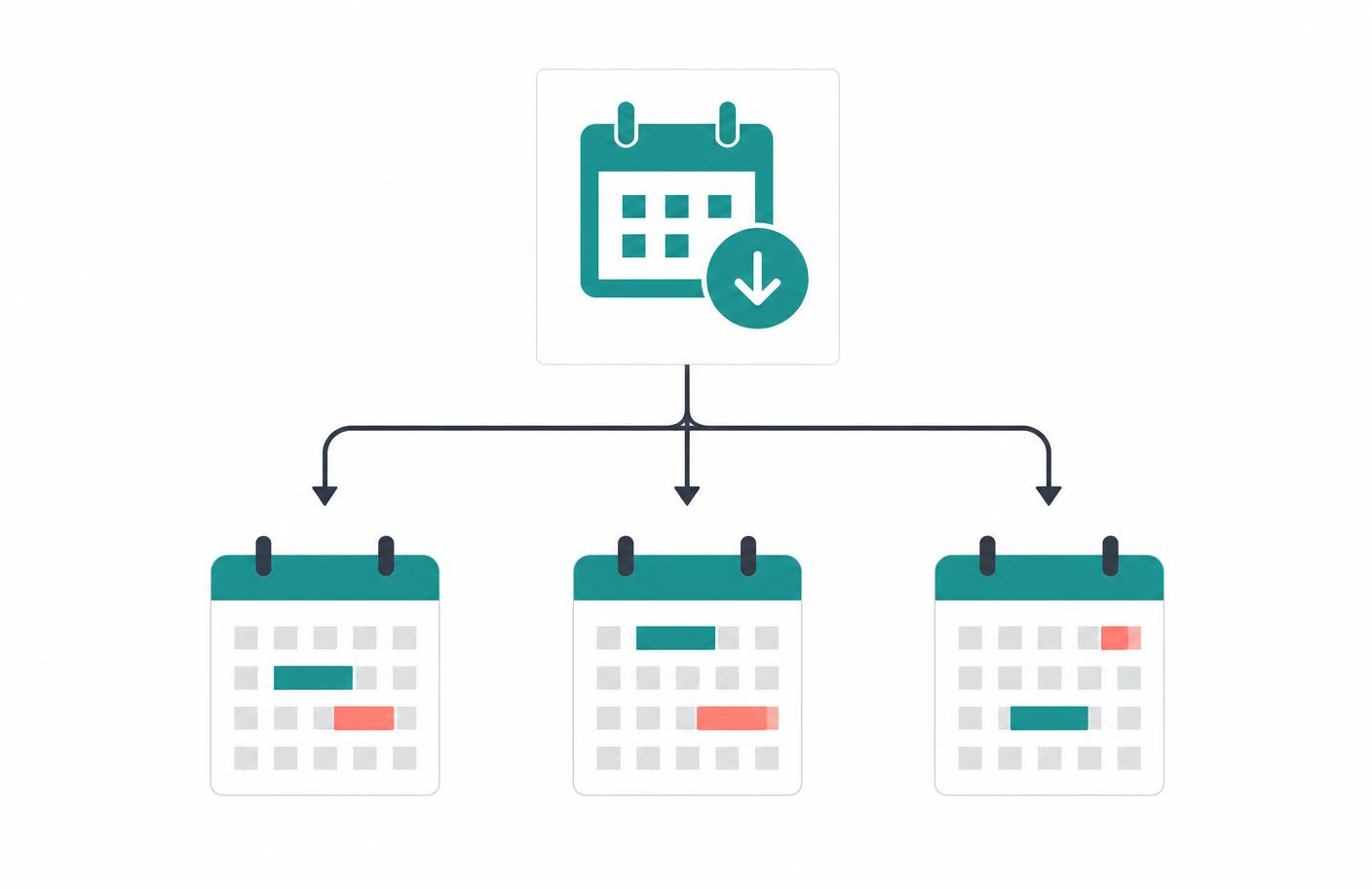
Save a date is not the same as book a meeting
Suppose you are running a webinar on 20 January at 14:00 UTC. Everyone attends the same event. An add-to-calendar link helps each person keep that date. Now suppose you offer individual consultations throughout the week. Each person needs a different available slot, and choosing one must create a booking. A save-the-date button cannot do that.
| Action | Right tool | Result |
|---|---|---|
| Save an announced webinar | Add-to-calendar link or .ics download | A personal calendar entry, once the visitor saves it |
| Reserve a private consultation | Booking widget | A confirmed appointment subject to booking rules |
| Follow future club events | Calendar subscription | A feed the calendar application refreshes on its own schedule |
| Read a venue's programme | Public event calendar | A visible schedule, without necessarily saving or reserving anything |
For reservations, see free booking calendar widgets. For a programme the organizer maintains, read editable calendar widgets for websites.
The simplest version: a downloadable .ics file
iCalendar is a standard format for exchanging calendar information, defined in RFC 5545. A file ending in .ics can describe an event without requiring your website to connect to the visitor's calendar account. The visitor still has to open or import it and confirm where it should be saved.
For a single fixed event, you can host a static file and link to it. That keeps the implementation small and avoids collecting calendar login details. Application and browser behavior varies, so test the download with the calendars your audience actually uses.
- Write the final event details. Agree the title, start, end, timezone, location, and public description before generating links.
- Create an iCalendar event. Include a stable UID, a creation timestamp, and explicit start and end values. The example below uses UTC.
- Host the file on your website. Give it a descriptive filename. If you control response headers, serve it as
text/calendar; charset=utf-8. - Add a clearly named link. Say “Add to calendar (.ics)” rather than using an unlabeled calendar icon.
- Import it and inspect the saved event. Test time, duration, description, location, and repeated imports before using it for a real event.
BEGIN:VCALENDAR
VERSION:2.0
PRODID:-//Your Website//Events//EN
CALSCALE:GREGORIAN
BEGIN:VEVENT
UID:example-webinar-20270120@your-domain.example
DTSTAMP:20261012T000000Z
DTSTART:20270120T140000Z
DTEND:20270120T143000Z
SUMMARY:Example webinar
DESCRIPTION:A sample event for testing calendar imports.
LOCATION:Your public event page
END:VEVENT
END:VCALENDAR
The example is a fictional 30-minute event, not an IntoCal appointment. Replace every event-specific value, including the UID domain and timestamp. Production iCalendar files use CRLF line endings; long content lines need folding, and text values need the escaping required by RFC 5545. For generated or complex events, use a maintained iCalendar library rather than concatenating raw user input.
<a href="/events/your-event.ics" download>
  Add to calendar (.ics)
</a>
You can download our fictional .ics example to inspect the import experience. It contains no registration and creates no IntoCal booking. Delete the example from your personal calendar after testing.
Calendar-provider links versus file downloads
A provider link can open a prefilled event form in a web calendar, where the visitor checks the details and clicks Save. An .ics file is less tied to one provider but may involve a download and an import step. Neither route proves that the person saved the event.
If you offer provider-specific options, label each one by destination and test its current link format. Do not send an Outlook user to a Google Calendar sign-in page behind a generic “Add” button. A download fallback is useful, especially when a visitor uses a desktop calendar application.
Apple Calendar can import iCalendar files; that general file compatibility is not an IntoCal Apple Calendar sync integration. Likewise, a visitor importing a file into Outlook is not the same as connecting your booking account to Outlook for conflict checks.
Timezones: the detail most worth testing
The Z at the end of 20270120T140000Z means UTC. The saved event can then be displayed in the calendar's local timezone. An event described only as “2 pm” leaves an important question unanswered: whose 2 pm?
For a fixed one-off event, explicit UTC start and end times are often straightforward. A recurring class that must remain at 9 am in a particular city needs named-timezone and recurrence handling so daylight-saving changes do not silently shift its local time. All-day events use date values rather than midnight timestamps; their end date is non-inclusive under the standard.
Use two test calendars in different timezones. Compare the actual instant and duration, not just matching clock numbers. Also put a human-readable timezone beside the event time on your website so visitors can check before saving.
What happens if the event changes?
A downloaded file is a snapshot. Updating that file on your website does not automatically update copies already imported into visitors' calendars. Keeping the same UID is important for event identity, but it does not guarantee every application will merge a later download rather than create a duplicate.
If you expect frequent changes, consider a calendar subscription or an invitation workflow designed for updates. Subscription refresh timing belongs to the receiving calendar application, so do not promise instant updates. For important cancellations or location changes, communicate directly with registered attendees; a changed download link is not enough.
Where IntoCal fits
IntoCal is the booking part of this workflow: visitors choose available appointments, then receive confirmation. It is not a standalone generator for public webinar save-the-date buttons. You can add calendar saving to your own event or confirmation page using the approach above, but do not mistake that saved entry for an IntoCal booking or automatic calendar sync.
If you are building a custom booking experience with code, start with an IntoCal account and a working API key. Keep private API keys on the server. A static public .ics link does not require an IntoCal key at all.
Quick fixes for calendar-saving problems
| Symptom | Check | Fix |
|---|---|---|
| The event appears at the wrong time | UTC suffix, timezone definition, and the website's displayed time | Generate explicit timezone-aware values and test another timezone |
| Saving twice creates two events | UID stability and application import behavior | Keep the UID stable; do not promise duplicate prevention across all calendars |
| A changed location stays unchanged | Whether the visitor imported a snapshot | Notify attendees and use a suitable update workflow |
| The download opens as plain text | File extension and response content type | Use .ics and serve as text/calendar where possible |
| No reminder appears | The event data and the visitor's calendar settings | Do not promise a reminder unless you have tested the target application's behavior |
A good add-to-calendar control is deliberately modest: it saves accurate event details and makes the destination clear. Registration, capacity, booking, reminders, and updates each need their own checks.
Frequently asked questions
What does an add-to-calendar widget do?
It lets visitors save a fixed event to their own calendar through a provider link or an iCalendar file. It does not by itself register attendees, check availability, reserve appointments, or guarantee reminders.
Can I add a calendar download without a paid widget?
Yes. For a fixed event, host a valid .ics file on your website and link to it. The visitor must still open or import the file and confirm the calendar destination.
Will editing an .ics file update events already saved?
Not automatically. A downloaded file is a snapshot. Calendar subscriptions or invitation workflows can support updates, but refresh and merge behavior depends on the receiving application.
How do I avoid the wrong timezone in a calendar download?
Use explicit timezone-aware start and end values. UTC values end in Z. Test the resulting event in calendars with different timezones; recurring local-time events need appropriate timezone and recurrence handling.
Does IntoCal provide a standalone add-to-calendar website widget?
No. IntoCal provides appointment booking widgets. A standalone event-saving control can be implemented separately with an .ics file or provider links, without creating an IntoCal booking.
Related guides
Editable calendar widget for websites: events or appointments?
Choose an editable calendar widget for your website: update public events or booking availability, manage permissions, and avoid maintaining duplicate schedules.
Free booking calendar widget for a website: setup and limits
Add a free booking calendar widget to your website with working HTML, clear plan limits, and a practical checklist for availability, emails, and mobile testing.
Make scheduling simpler.
Outlook-first booking with a free-forever plan.
Try IntoCal freeRead next
Editable calendar widget for websites: events or appointments?