
Editable calendar widget for websites: events or appointments?
Choose an editable calendar widget for your website: update public events or booking availability, manage permissions, and avoid maintaining duplicate schedules.
An editable calendar widget for websites should let the owner update the underlying schedule without replacing the website code each time. For public classes or events, embed a calendar whose events you edit in its own application. For appointments, use a booking widget and edit availability and appointment details in the booking dashboard. Visitors normally view events or book a time; they should not gain permission to edit your source calendar.
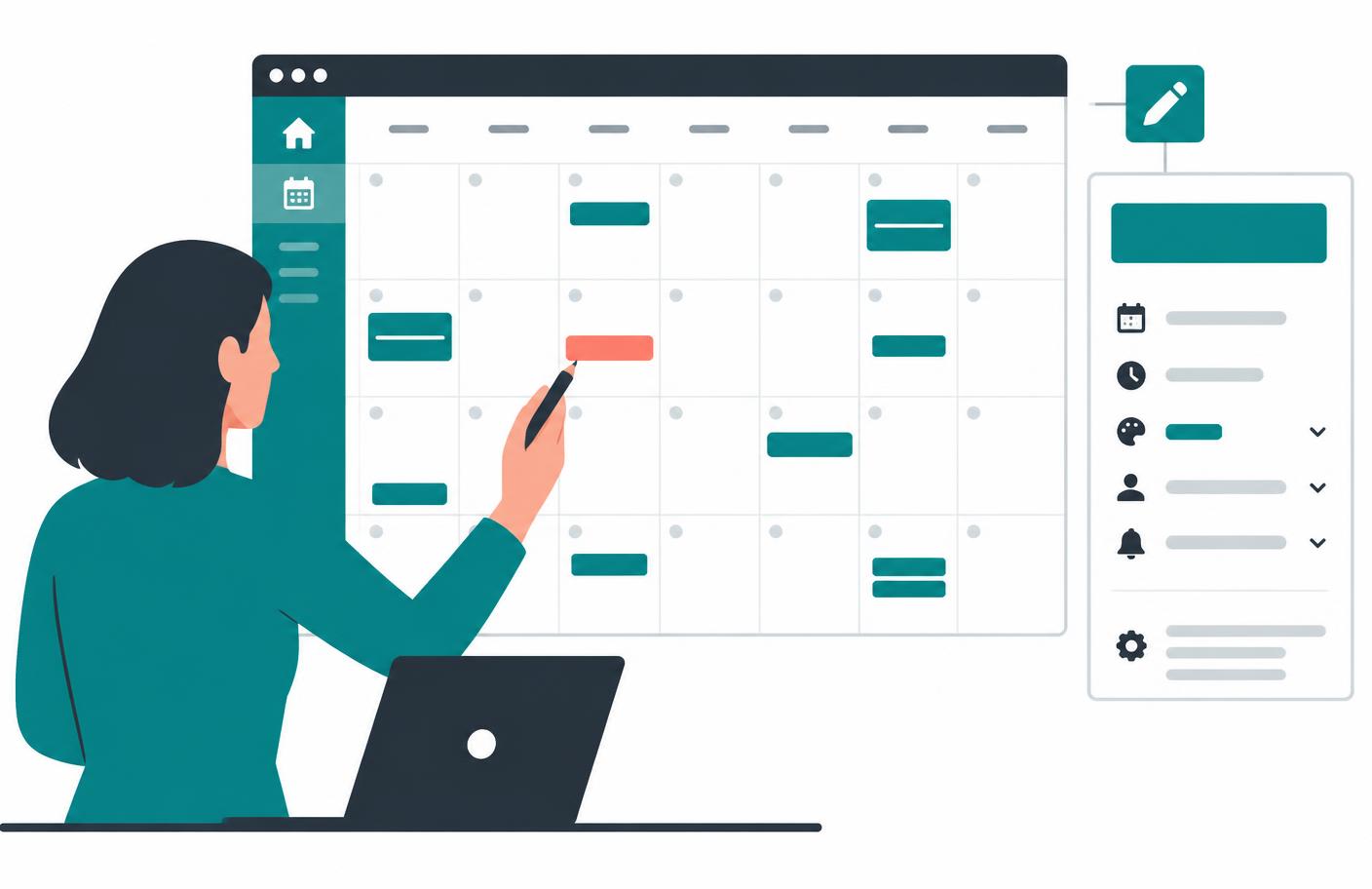
“Editable” can mean three very different things
Imagine a tutor's website. It might show a public timetable, let pupils book individual lessons, or let staff move appointments around. Each requirement calls for different permissions and a different tool. Buying a widget with a color picker will not solve staff scheduling; embedding a public timetable will not reserve lessons.
| What you want to edit | Where the edit belongs | What visitors see |
|---|---|---|
| Event title, location, or date | The source event calendar | An updated public schedule |
| Bookable hours, meeting length, or location | The appointment scheduler | Updated choices for future bookings |
| Colors, theme, or surrounding layout | Widget settings and website editor | The same schedule with a different presentation |
This guide is about owner-editable calendars. A shared editor where website visitors can create or drag events is a separate application: it needs authentication, edit permissions, and conflict handling. IntoCal's public booking widget is not that kind of collaborative calendar editor.
Option 1: an editable public event calendar
Use this for a school's term dates, a club's meetups, or a venue's public programme. The organizer creates and changes events in the calendar application. The website embeds a view of that calendar rather than keeping a second, manually maintained list.
Google Calendar provides an official embed workflow. On a computer, open Settings, select the calendar, then find Integrate calendar and its embed code. Configure the view and copy the iframe into the website. For visitors who are not signed into your account to see it, the calendar must be shared appropriately; Google's public embed instructions explain the access settings.
- Create a separate public calendar. Do not publish your personal diary just to show three class dates.
- Add only information intended for the public. Include the event name, start and end time, location, and a useful description. Leave private attendee notes out.
- Set the calendar's sharing permissions. Review exactly which event details become visible before enabling public access.
- Copy the provider's embed code. Use the real calendar identifier generated by the provider, not an example iframe copied from another website.
- Test a source edit. Change a sample event and reload the published website. Also open it signed out, so owner access does not hide a permissions problem.
The official reference is Google's guide to adding a calendar to a website. A public calendar is a display solution, not a registration system. If a class has ten seats, you still need a way to manage registrations and capacity.
Option 2: an editable booking calendar
Use a booking calendar when each visitor needs to choose an available appointment. Instead of adding an event for every possible consultation, define the hours you accept bookings and the duration of each appointment type. The scheduler turns those rules into time choices.
In IntoCal, the calendar, appointment types, and availability are managed in your dashboard. The embed uses your public username and appointment slug. As long as those identifiers stay the same, ordinary changes to availability and appointment details do not require you to paste a new snippet on every page.
<script src="https://intocal.com/embed.js" defer></script>
<div data-intocal="yourname/consultation"></div>
Changing the public slug is different from changing the display title: the slug is part of the widget's address. If you replace it or delete the appointment type, update the website reference too. Treat public identifiers as links you maintain, not disposable labels.
For exact setup and the free tier's limits, see free booking calendar widget for a website. For the underlying scheduling rules, use the appointment scheduling setup guide.
Editing the appearance is not editing the schedule
IntoCal's booking page uses the theme and accent color saved on the calendar. Make those changes in the calendar settings, then inspect the public page. Do not assume a query parameter from a generic widget example overrides the saved settings.
There is also a boundary between your website and an embedded booking page. CSS on your website can control the surrounding section's width, spacing, and heading. It cannot generally reach inside a cross-origin iframe to restyle the form fields. Use the widget's supported settings rather than trying to target its internal elements with your website stylesheet.
On IntoCal Free, branding remains visible. Removing it requires a paid plan. Appearance controls do not turn a booking widget into a drag-and-drop month calendar or a public event directory; those are different products.
Will existing appointments change when I edit availability?
Do not treat a new weekly schedule as a way to move bookings already confirmed. If you stop offering Friday afternoons, check your existing Friday appointments separately. Availability controls determine what can be booked; changing them is not the same action as cancelling or rescheduling a confirmed meeting.
The same caution applies to descriptions and meeting locations. Before changing an appointment type used by current guests, check their confirmation details and communicate any change that affects them. A website showing new information does not prove an old invitation has been updated.
Choose one source of truth
A common maintenance problem is keeping the schedule in a spreadsheet, a public calendar, and a website table. Someone edits one copy and forgets the others. Choose where edits happen, then let the website display that source. Keep a short note for whoever covers the role when you are away.
For appointment booking, decide where real conflicts live too. IntoCal Free does not include external calendar sync. If your working diary is in Outlook or Google, paid sync can be relevant; check the current pricing and test that connected busy events affect your availability.
Editable calendar troubleshooting
| Problem | Likely distinction | Check |
|---|---|---|
| I can see events, but other people cannot | Owner access versus public access | Open the website signed out and review calendar sharing |
| My website CSS does not change the widget | Page styling versus iframe styling | Use supported widget appearance settings |
| Visitors cannot edit events | Public display versus collaborative editing | Keep edits behind authenticated permissions; do not expose owner credentials |
| The embedded booking page has disappeared | Display title versus public identifier | Check whether the username or appointment slug changed |
| Guests need to save the date, not book a time | Calendar display versus event export | Use an add-to-calendar link |
Choose an event calendar if you publish dates, a booking widget if visitors reserve times, and a shared application if people must edit together. That decision matters more than whether the calendar looks editable in a screenshot.
Frequently asked questions
What is an editable calendar widget for websites?
It is a website calendar whose owner can update the source events or booking rules without replacing the embed code for every change. Public display, appointment booking, and collaborative event editing are different requirements.
Can visitors edit my embedded calendar?
A public embed does not normally give visitors edit permissions. Collaborative editing needs authentication and carefully controlled access, not a publicly exposed owner credential.
Can I edit a Google Calendar after embedding it?
Yes. Edit the events in the source calendar. The embed displays that calendar, subject to its sharing permissions. Check the published website signed out after changing events or access settings.
Do I need to replace my IntoCal embed after editing availability?
Not for ordinary availability changes if the public username and appointment slug stay the same. Changing those identifiers or deleting the appointment type can require updating the website reference.
Can IntoCal's widget work as a public drag-and-drop event editor?
No. IntoCal's public widget is for appointment booking, not collaborative event editing or a public month-view event directory. Owners manage booking settings in their dashboard.
Related guides
Add-to-calendar widget for your website: a practical .ics guide
Build an add-to-calendar widget for your website using an .ics file. Handle timezones, test imports, and understand why saving an event is not a booking.
Free booking calendar widget for a website: setup and limits
Add a free booking calendar widget to your website with working HTML, clear plan limits, and a practical checklist for availability, emails, and mobile testing.
Make scheduling simpler.
Outlook-first booking with a free-forever plan.
Try IntoCal freeRead next
Free booking calendar widget for a website: setup and limits