
Free booking calendar widget for a website: setup and limits
Add a free booking calendar widget to your website with working HTML, clear plan limits, and a practical checklist for availability, emails, and mobile testing.
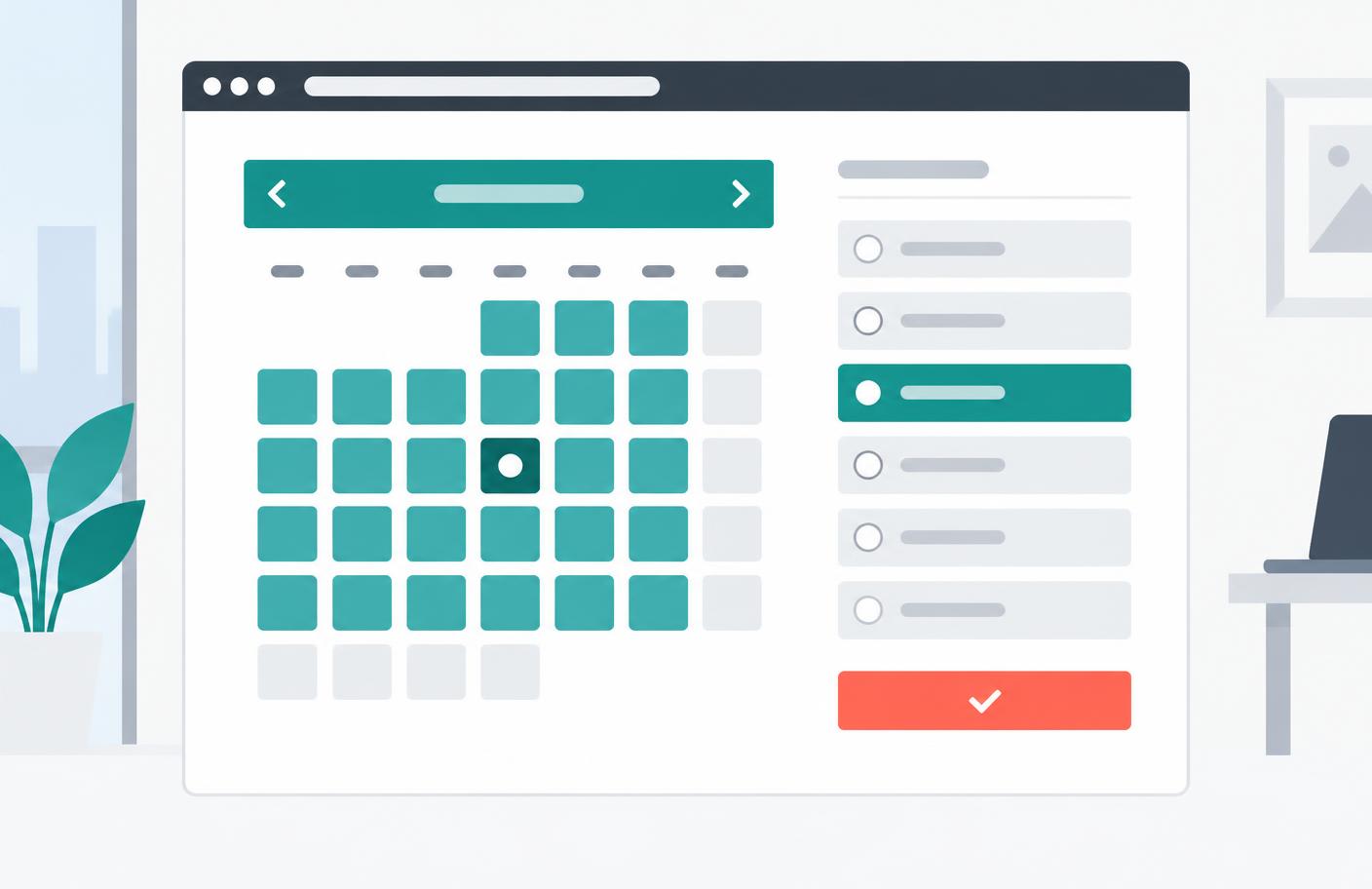
A free booking calendar widget for a website lets visitors choose an available appointment and leave their contact details without leaving the page. IntoCal Free includes an embeddable booking page, one calendar, two appointment types, and basic email notifications. It keeps IntoCal branding and does not include external calendar sync. Start with a real appointment type, embed its page, then complete a test booking before sending visitors to it.
First, check that you need a booking widget
A consultant offering introductory calls needs visitors to reserve a time. A community group publishing its meeting dates needs visitors to read a schedule. A webinar organizer with one fixed date needs visitors to save that event. All three can look like calendars, but only the first needs appointment booking.
| Visitor's task | Use this | What it does not do |
|---|---|---|
| Choose a time for a consultation | Booking widget | It is not a public list of every event in your diary |
| See next month's classes | Public event calendar | Showing a class does not automatically reserve a seat |
| Save a webinar already scheduled | Add-to-calendar link | It does not check availability or register the attendee |
If you need a schedule you can update, read the editable calendar widget guide. For a fixed event, use the add-to-calendar guide instead.
What “free” includes—and where it stops
Do not choose a widget from its monthly price alone. Check the permanent plan rather than the trial, especially if your appointment page will stay on your website for years. A two-week trial and a free tier solve different problems.
IntoCal's Free plan covers one booking calendar and two appointment types. That can suit a solo consultant offering a short introduction and a longer consultation. The website embed and basic notifications are included. Removing IntoCal branding is a paid feature; external Outlook or Google calendar sync is not part of Free.
That last limit matters. If you manually set Monday afternoons as bookable but also accept meetings in Outlook, a free widget will not automatically know about those external commitments. Keep your booking hours accurate, or choose a plan with external sync. A calendar-shaped interface alone is not double-booking protection.
For a broader checklist, see free appointment scheduling online and the current IntoCal plan limits.
How to add the free booking widget to your website
- Create your booking calendar. Sign up, choose a public username, and give the calendar a recognizable name. Use “Consultations” rather than an internal label a guest will not understand.
- Create the appointment type. Set its duration and location. “Introductory call, 30 minutes” gives visitors more information than “Meeting.” Check the event's public slug; you will need it for the embed.
- Set the hours you can actually offer. Add weekly availability and check any date-specific exceptions. Leave space between appointments if you need preparation time.
- Copy the embed from Dashboard → Distribution. Replace the example username and event slug below with your own. These values are public identifiers, not an API key.
- Publish the website page and book a test appointment. Check the guest's timezone, the meeting location, and both confirmation emails. Cancel the test booking afterward so it does not occupy a real slot.
<script src="https://intocal.com/embed.js" defer></script>
<div data-intocal="yourname/intro-30"></div>
Paste the snippet into a section that allows custom HTML and scripts. Some website builders strip scripts from ordinary text blocks or show them only on the published page. If nothing appears in the editor, check the live page before changing the code.
You do not need a WordPress plugin for this HTML approach. WordPress permissions and hosting rules determine whether your account can save script tags. IntoCal's dedicated WordPress plugin is not published, so do not make it a prerequisite for this setup. Webflow users can follow the Webflow embed instructions.
Inline widget or a link?
An inline widget makes sense on a dedicated consultation page: the visitor has read the offer and is ready to choose a time. On a crowded homepage, a simple link often gives the booking flow more room and avoids another scrolling area.
<a href="https://intocal.com/book/yourname/intro-30">
  Book an introductory call
</a>
Keep a working booking link near the embed as a fallback. It helps when a visitor's browser blocks the embedded page, and it lets you distinguish a website problem from a booking-page problem.
Before you call it finished
- Open the published page on a phone. Can you select a date, reach the time choices, and submit the form without clipped content?
- Use the keyboard to reach the booking area and work through the controls. Do not assume embedding a widget makes the surrounding page accessible.
- Try the public page in a private window. Your signed-in dashboard is not the guest experience.
- Check an unavailable time as well as an available one. Test the rules, not just the happy path.
- Confirm your privacy notice covers the contact details collected during booking.
When the widget does not behave as expected
| Symptom | Check first | Next action |
|---|---|---|
| Empty space where the widget belongs | Script removal, a blocked request, or the wrong embed block | Check the published HTML and open the booking link directly |
| The wrong calendar appears | Username and appointment slug | Copy the identifiers from Distribution rather than guessing from the title |
| No times can be selected | Availability, duration, booking notice, and date limits | Follow the no available times checklist |
| The last form fields are hidden | A fixed-height website section | Remove restrictive height or overflow settings around the embed |
| An Outlook meeting still looks bookable | Whether external sync is included and connected | Update availability manually on Free, or enable sync on a paid plan |
A useful free widget is one guests can finish using, not merely one that renders a calendar. Create your free booking page, embed one appointment type, and test that complete journey before adding more choices.
Frequently asked questions
Is there a free booking calendar widget for a website?
Yes. IntoCal Free includes a website booking embed, one calendar, two appointment types, and basic email notifications. IntoCal branding remains, and the published Free plan does not include external calendar sync.
Does the website embed need an API key?
No. The script embed uses your public username and appointment slug. Do not put a private API key into website HTML.
Can I use the widget without a website plugin?
Yes, if your website permits custom HTML and scripts. Paste the embed script and its data-intocal container into an appropriate HTML section, then test the published page.
Does a free booking calendar prevent every double booking?
Not by itself. The booking rules must match your schedule. External commitments require manual availability management or a connected calendar on a plan that includes sync.
Is a Google Calendar embed the same as a booking widget?
No. A normal Google Calendar embed displays events. A booking widget lets visitors choose available appointment times and submit a booking.
Related guides
Add-to-calendar widget for your website: a practical .ics guide
Build an add-to-calendar widget for your website using an .ics file. Handle timezones, test imports, and understand why saving an event is not a booking.
Editable calendar widget for websites: events or appointments?
Choose an editable calendar widget for your website: update public events or booking availability, manage permissions, and avoid maintaining duplicate schedules.
Make scheduling simpler.
Outlook-first booking with a free-forever plan.
Try IntoCal freeRead next
How to create online appointment scheduling (step by step)